Selection and Pointer
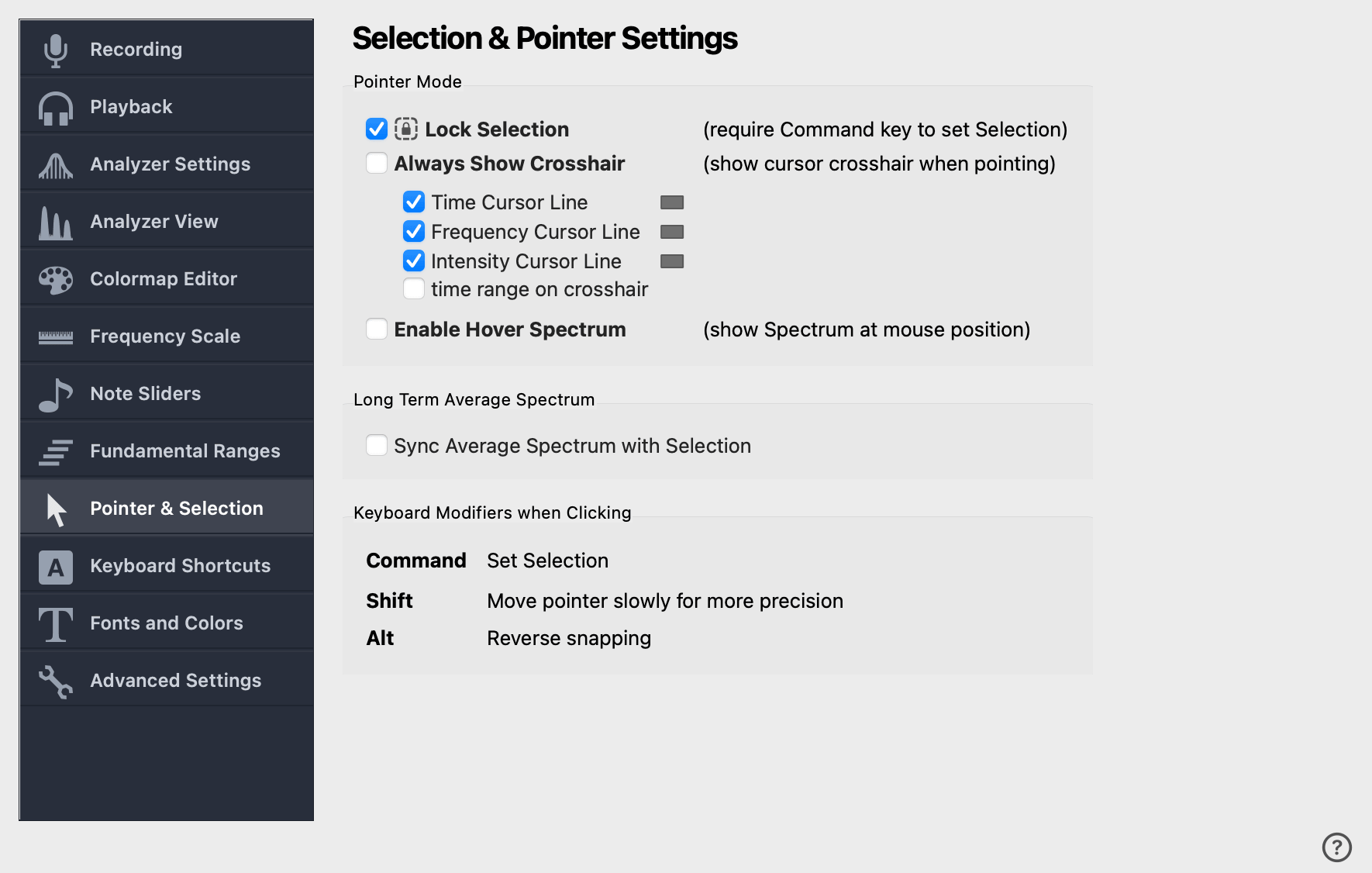
This page configures how the mouse pointer interacts with the spectrogram and time scales: how the Selection is set and protected, what cursor lines are drawn, and which keyboard modifiers reshape clicking and dragging.
Pointer Mode
Lock Selection
- Selection Locked: Ctrl/Cmd-Click sets Selection
-
When the selection is locked, a single mouse click cannot change or clear it. To set the selection, hold the Control key (Windows / Linux) or Command key (macOS) and drag on the spectrogram or a time scale. Use this when you have set up a careful selection and do not want a stray click to wipe it out.
- Selection Unlocked: Click sets Selection
-
When unlocked, a single click resets the selection. Drag on the spectrogram or a time scale to set a new one.
Always Show Crosshair
When checked, the crosshair follows the mouse on every view (the spectrogram, the LTAS, the staff view, …). When unchecked, the crosshair is shown only on the Short-Term view (spectrum) and on the scales.
The four cursor-line toggles below this option choose which lines make up the crosshair.
Time Cursor Line
Show a vertical line through the cursor’s time position when the crosshair is visible.
Frequency Cursor Line
Show a horizontal line through the cursor’s frequency when the crosshair is visible.
Intensity Cursor Line
Show a horizontal line through the cursor’s intensity value on intensity axes such as the spectrum.
time range on crosshair
When checked, small helper lines around the time cursor mark the effective time range of the spectrum and pitch window functions — i.e. how much audio on either side of the cursor actually contributes to the current measurement. Useful when tuning the analyzer’s time window: you can see how much context is being folded into each update.
| Enabling this option also turns on the Time Cursor Line and Frequency Cursor Line, since the time-range markers are drawn on top of them. |
Enable Hover Spectrum
By default, moving the mouse across the spectrogram has no effect on the short-term spectrum.
When Enable Hover Spectrum is checked, moving the pointer across the spectrogram, waveform, or timeline immediately updates the short-term view to that time position — so you get a continuously refreshing spectrum slice as you scrub. Enabling hover also turns on the crosshair and time cursor line; disabling them again turns hover off.
Keyboard Modifiers when Clicking
These keyboard modifiers change the pointer’s behaviour while clicking or dragging.
- Command / Control
-
Holding Command (macOS) or Control (Windows / Linux) while clicking always sets the selection, regardless of whether the selection is locked. + Holding the same key while clicking on sliders or piano keys selects multiple elements at once.
- Shift
-
Holding Shift while dragging the pointer slows the motion down for more precision. Useful for fine-grained moves of selection edges, sliders, or scales.
- Alt
-
Holding Alt while dragging a Note Slider inverts its snapping. When the slider is set to snap to musical notes or spectral peaks, it does not snap while Alt is held — and vice versa.