Scale Settings
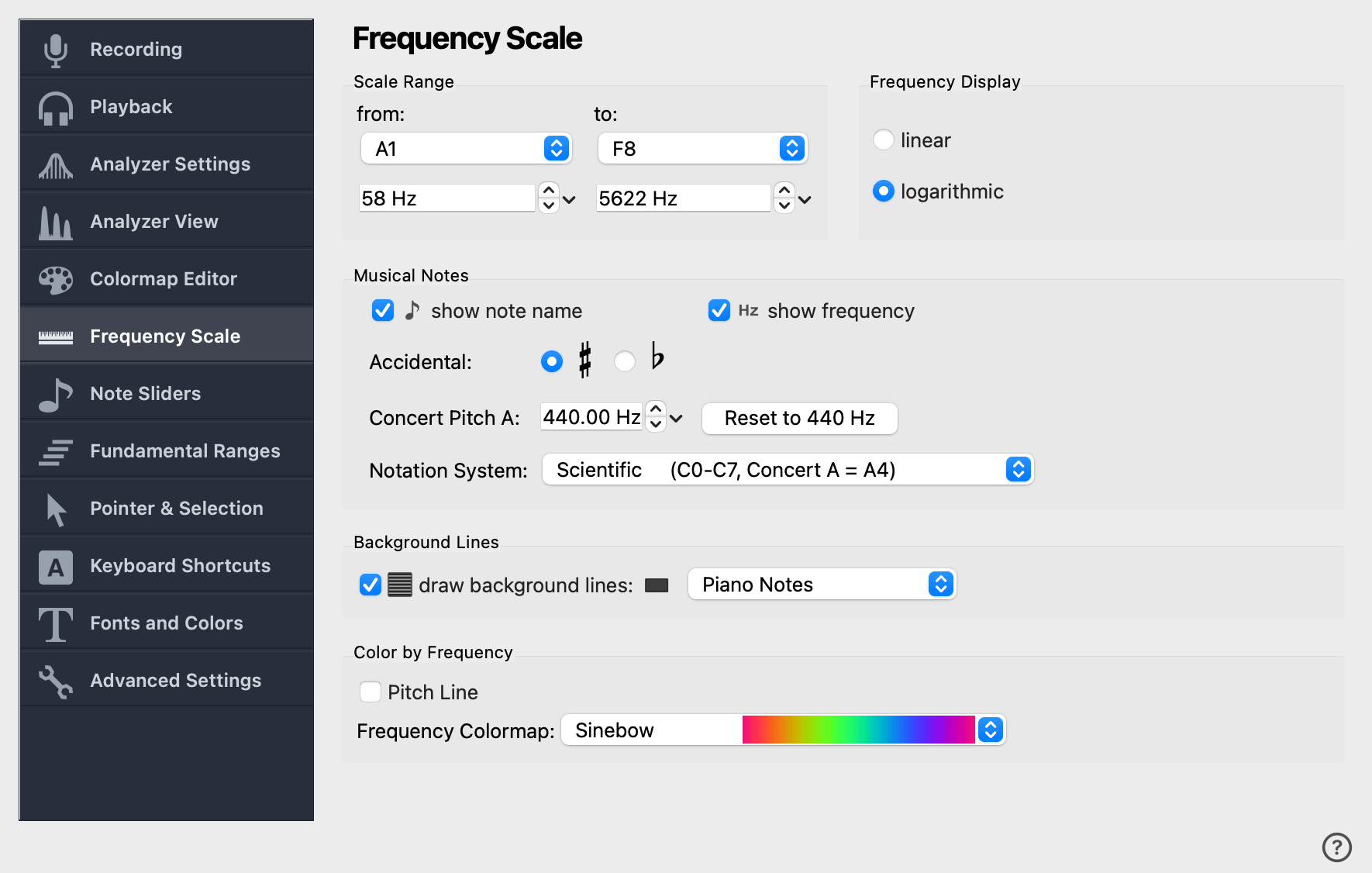
The Scale Settings page configures the frequency axis used by every analyzer view: its range, whether it is drawn linearly or logarithmically, how note names are written, and what guide lines are drawn behind the spectrogram. Most of these settings can also be changed from the toolbar.
Scale Range
The lowest and highest note (or lowest and highest frequency) shown on the piano and analyzer views. The combos pick a note; the adjacent spin boxes show the corresponding frequency in Hertz, which you can edit directly when you want a non-note boundary.
The scale range can also be changed without opening this dialog by clicking and dragging the frequency scale in the main view, or by scrolling the mouse wheel over it.
Frequency Display
- linear
-
Frequencies are spaced evenly along the axis. Consecutive harmonics end up the same distance apart, but piano keys grow wider toward the high end.
- logarithmic
-
Frequencies are spaced logarithmically. Piano keys are all the same size, harmonics grow more closely spaced higher up, and the scale matches how the ear perceives pitch — making it the preferred setting for analyzing music.
The example below illustrates the difference between linear (left) and logarithmic (right) over the same range, ~80 Hz to 1100 Hz (E2 to C6). The logarithmic view shows much more detail in the lower octaves.
Musical Notes
This group controls how note names are written on the piano keyboard, the staff view, and the labels of note sliders.
show note name
Display the nearest tempered tone next to each slider label, along with its difference from the slider’s pitch in cents.
Accidental
- Sharp
-
Black keys on the piano are written using the sharp symbol (♯).
- Flat
-
Black keys are written using the flat symbol (♭).
You can also right-click the staff view to switch between sharp and flat.
Concert Pitch A
The frequency used as the reference for the note A4. Every other note frequency is calculated relative to this pitch, so changing it transposes the entire keyboard. The default is 440 Hz; baroque ensembles often use 415 Hz, and some classical orchestras tune to 442 or 443 Hz.
The Reset to 440 Hz button next to the spin box restores the standard concert pitch.
Notation System
- Helmholtz Notation
-
Common in German-speaking countries. Notes range from
A2toC, thenc–c5. The case of the letter conveys the octave. - Scientific Notation
-
Common in English-speaking countries. Notes range from
A0toC8, with the octave number after the letter. - Piano Keyboard Notation
-
Keys are numbered 1–88 as on a real piano (white and black keys). Mainly used by piano tuners.
- Solfège
-
Notes are written
Do,Re,Mi,Fa,Sol,La,Si. Common in Romance-language traditions.
Background Lines
Background lines are thin guide lines drawn behind the spectrogram and spectrum to help you read frequencies at a glance.
draw background lines
When checked, background lines are drawn. When unchecked, the background of the analyzer view is left empty.
The combo to the right chooses what the lines represent:
- Piano Notes
-
One line per tempered note, with octave lines emphasized.
- Frequency Scale Ticks
-
Lines at the same positions as the tick marks on the frequency axis.
- Fixed increments
-
Lines at a fixed Hz interval. The interval is set by the line spacing spinbox that appears below this combo, and is independent of the current notation or scale type.
The color of the background lines is set by the color button to the right of the combo. This color is part of the current colormap if the Linked UI Colors tab on the Colormap Editor is configured to override it, otherwise it follows the global setting on Fonts and Colors.
Color by Frequency
When this option is enabled, the pitch line is drawn in a color that varies with frequency, using the colormap chosen below.
Pitch Line
When checked, the displayed pitch line is colored according to its frequency, using the Frequency Colormap below. This makes vibrato and pitch transitions more visually obvious than a single-color line.
Frequency Colormap
The colormap used to color the pitch line when Pitch Line above is checked. The same colormaps available on the Colormap Editor are listed here.